Guide · Vectorizing
How to convert an image to SVG
Converting an image to SVG, also called tracing or vectorizing, turns pixels into shapes. The result scales to any size without blur, and you can change its colors and edit it in Figma, Illustrator or code.
Updated October 22, 2026
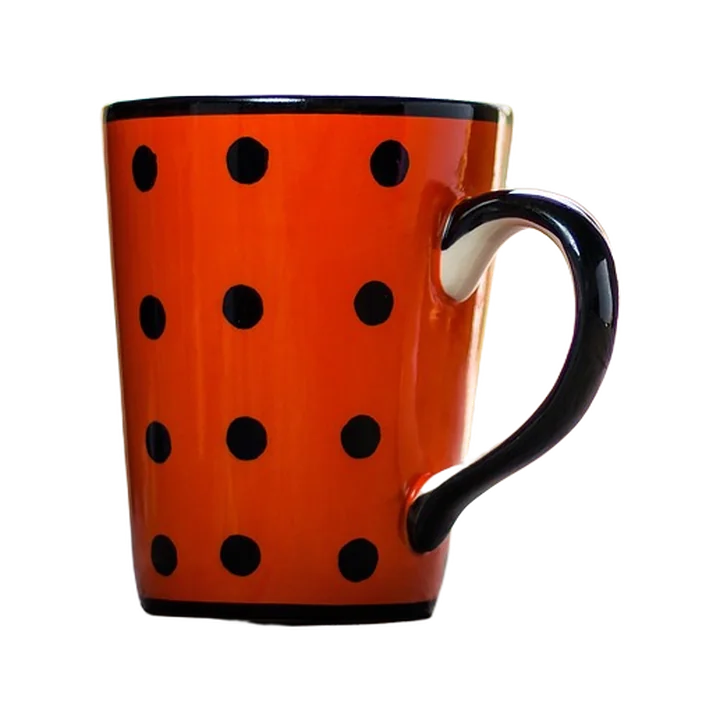 Cutout · PNG
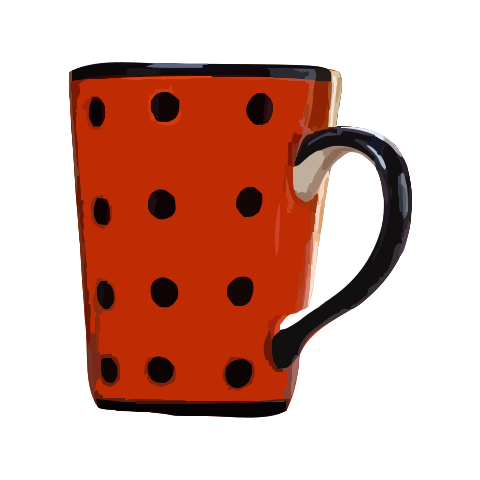 Vector · SVG
What traces well, and what doesn’t
- Great: logos, icons, illustrations, stickers, clip art, flat graphics and simple product shots.
- Fine: photos of objects on a plain background, especially once the background is removed.
- Hard: busy photos with lots of detail. They turn into thousands of shapes and a heavy file. Remove the background first (see how to remove a background offline), or use fewer colors.
Tracing makes shapes from areas of color. It doesn’t recover hidden detail or redraw a blurry logo, so start from the sharpest, largest image you have.
Your options
| Tool | Works offline | Good for |
|---|---|---|
| Inkscape (Trace Bitmap) | Yes, free | Full control, if you already use Inkscape |
| Adobe Illustrator (Image Trace) | Yes, paid | Illustrator users who edit the result there |
| Online converters | No, you upload the image | A one-off file |
| AssetHUD | Yes | Finding, cutting out and tracing in one place, then pasting into Figma or code |
How to convert an image to SVG with AssetHUD
- Download AssetHUD for Windows or Mac and sign in. The Free plan needs no card.
- Press Ctrl + Space (Option + Space on a Mac), then search for an image or drop your own file onto the window.
- Optional: press B to remove the background first. A clean subject gives a cleaner SVG.
- Open the image and choose Vectorize. Pick Color or Mono (one color, for icons and logos), and adjust the smoothness until the edges look right.
- Choose Copy SVG (Figma) and paste it into Figma as editable vector layers, copy it as a React JSX component, save the .svg file, or drag it into any app.
Tracing runs on your computer, so the image isn’t uploaded anywhere and it works offline. On Pro and Max you can also recolor the SVG in the app before you copy it.
The Free plan includes 20 background removals and 10 SVG traces a month. Pro has 500 and 200, and Max is unlimited.
Tips for a cleaner SVG
- Start from the biggest version of the image you can find. Small, blurry images trace into lumpy shapes.
- Remove the background first, so the tracer doesn’t turn it into shapes too.
- Use Mono for logos and icons: one color is lighter and easier to restyle in Figma.
- For photos, expect a large file. Keep the photo itself if you only need it at one size.
Common questions
Is SVG better than PNG?
For logos, icons and illustrations, yes: SVG stays sharp at any size and is usually smaller. For photos, PNG or JPG is usually better.
Can I edit the SVG in Figma?
Yes. Copy SVG (Figma) pastes the result as vector layers you can recolor, reshape and resize.